Заглавная страница Избранные статьи Случайная статья Познавательные статьи Новые добавления Обратная связь FAQ Написать работу КАТЕГОРИИ:  Археология Археология Биология Биология Генетика Генетика География География Информатика Информатика История История Логика Логика Маркетинг Маркетинг Математика Математика Менеджмент Менеджмент Механика Механика Педагогика Педагогика Религия Религия Социология Социология Технологии Технологии Физика Физика Философия Философия Финансы Финансы Химия Химия Экология ЭкологияТОП 10 на сайте Приготовление дезинфицирующих растворов различной концентрацииТехника нижней прямой подачи мяча. Франко-прусская война (причины и последствия) Организация работы процедурного кабинета Смысловое и механическое запоминание, их место и роль в усвоении знаний Коммуникативные барьеры и пути их преодоления Обработка изделий медицинского назначения многократного применения Образцы текста публицистического стиля Четыре типа изменения баланса Задачи с ответами для Всероссийской олимпиады по праву 
Мы поможем в написании ваших работ! ЗНАЕТЕ ЛИ ВЫ?
Влияние общества на человека
Приготовление дезинфицирующих растворов различной концентрации Практические работы по географии для 6 класса Организация работы процедурного кабинета Изменения в неживой природе осенью Уборка процедурного кабинета Сольфеджио. Все правила по сольфеджио Балочные системы. Определение реакций опор и моментов защемления |
Exercise 2. Insert an edge (frame) on the image. Method 2.Содержание книги
Поиск на нашем сайте Open the Adobe Photoshop app. 2. Globe.open the tif image.
3. create a new channel from the channel palette. 4. use the elliptical selection tool to create an ellipse or circle on the new channel. 5. Selection ► Invert selection follow the command. 6. Paint the resulting area white.
9. PGB- go to channel.
10. insert the selected channel to the image by pressing the <Ctrl>button.
11. color the selected area in the desired color.
12. to remove the selection. Exercise 3. Insert a frame on the image. Method 3. Open the Adobe Photoshop app. 2. cat. open the tif image.
3. Create a new channel from the channel palette. 4. use the rectangular selection tool to insert a rectangular shape into the new channel. 5. Selection ► Invert selection follow the command. 6. paint the resulting area white.
7. delete the selection. 8. Twirl: filter ► Distort ► run the Twirl command and use the filter per channel.
9. Color Halftone Pattern: Фильтр ► Pixelate ► Color Halftone
10. PGB- go to channel.
11. insert the selected channel to the image by pressing the <Ctrl>button.
12. color the selected area in any color.
13. to remove the selection.
Laboratory work № 10-12 D rawing the image colors on the water. W orking with the three-dimensional transformation method. V arious methods for creating textures. U sing various effects to the image.
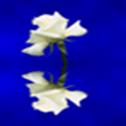
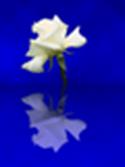
Goal: to learn how to use filters in Adobe Photoshop. Necessary tools and materials: PC, Adobe Photoshop. Content and order of work I. repetition of theoretical data; II. independent performance of exercises and analysis of results; III. delivery of laboratory work. Exercise 1. | ||||||||||||||||||
1. Adobe Photoshop run the program.
2. flower from the package of my documents.open the tif image.
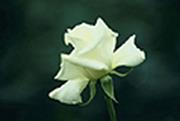
4. put a flower from the clipboard.
5. align the bottom surface of the drawing. 6. front surface color light blue __ color, and the background color is dark blue __ to set the color.
7. go to the background surface. Use the following filter on the background: ► Render ► Clouds Filter.
1. copy each other's pages. 2. set the image size as follows:
Image ► canvas Size.
3. select the lower part of the image using the amazing wand (sensitivity = 0). 4. similar to the gradient type below 5. Now use the gradient.
6. The allocation ► run the command to Invert the selection. Copy the specified part. 8. Set the image vertically: image ► Rotate the canvas ► Flip vertically.
9. put a picture.
10. set the image up.
11. set the image vertically: image ► Rotate the canvas ► Flip vertically. Set the copied page down. 12. set the brightness of this page to 50%.
13. select the lower part of the image. 14. set the following filter ► Distort ► Ocean Ripple.
15. delete the selection. 16. merge pages.
|
|||||||||||||||||||
|
|
Последнее изменение этой страницы: 2021-04-12; просмотров: 101; Нарушение авторского права страницы; Мы поможем в написании вашей работы! infopedia.su Все материалы представленные на сайте исключительно с целью ознакомления читателями и не преследуют коммерческих целей или нарушение авторских прав. Обратная связь - 216.73.216.60 (0.006 с.) |


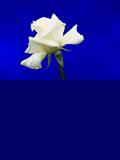
 selected color.